
Word Explainer icon

Explain any word while you read

Highlight any word on any page and get a plain-language explanation, in the same language you're reading. A free Chrome extension — no account, no setup, no analytics.

Coming to the Chrome Web Store
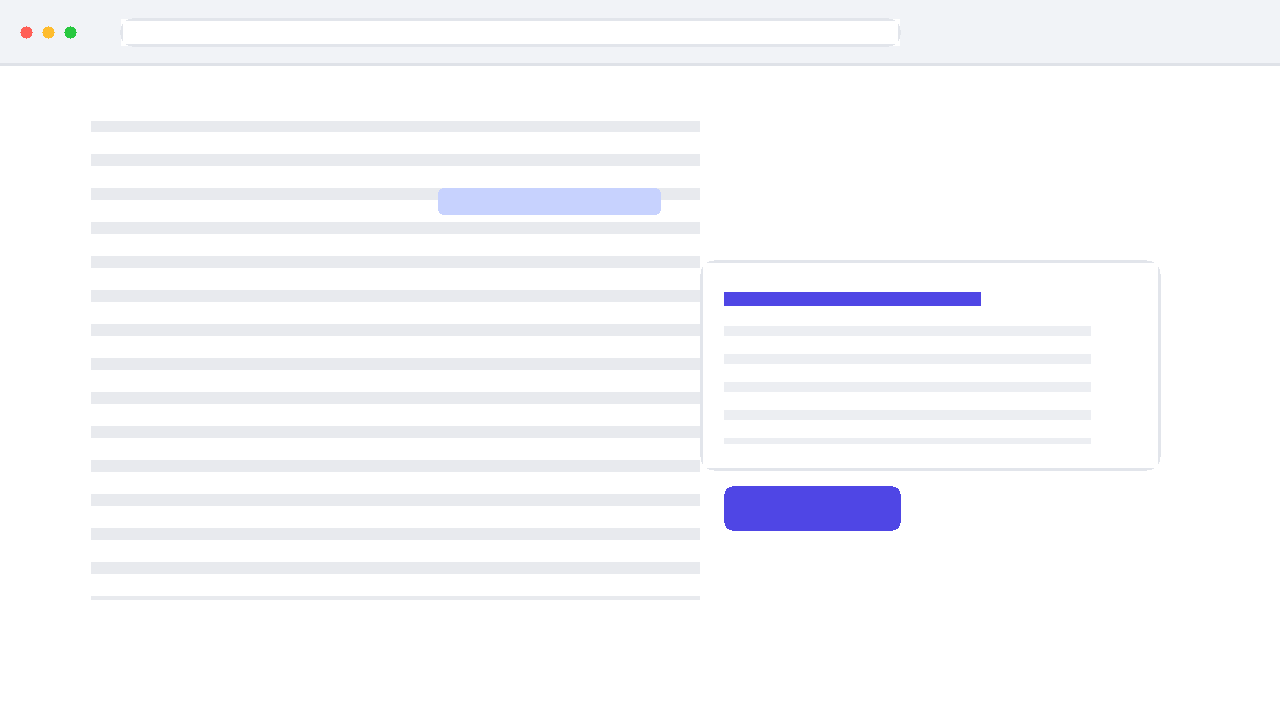
The Word Explainer tooltip showing an explanation for a highlighted word on a webpage

How it works

Word Explainer adds one small action to the page you are already reading: select a word. You do not copy it, you do not switch tabs, and you do not retype it into a search box. The extension sees the selection, sends only that text for an explanation, and shows the answer where your eyes already are.

1

Highlight a word

Select any word or short phrase on a webpage. Up to 100 characters — enough for a phrase, not enough for a paragraph.

2

Popup appears

An explanation tooltip appears next to the selection, without moving the page or opening a new tab.

3

Read the explanation

The explanation is written in the language you are reading, so unfamiliar vocabulary does not turn into a translation exercise.

Example:

"She was reading a voluminous book on Renaissance art."

→ Explanation: "Voluminous" means very large, thick, or consisting of many volumes. In this context, it describes a book that is physically large or has many pages.

Features

Highlight to explain

No typing, no copying. Select a word and the explanation arrives — the reading flow is never broken.

Same-language explanations

If the page is in French, the explanation is in French. It explains the word, it does not swap it for an English one.

Works out of the box

No account, no sign-in, no API key to paste into a settings screen. Install it and start reading.

Instant or Button mode

Choose whether an explanation appears the moment you highlight, or only when you ask for it. The second mode suits pages where selecting text is part of normal use.

CEFR A1–C2 levels

Set the explanation to your level, from A1 for beginners to C2 for near-native readers. A1 gives simple wording; C2 gives the nuance.

Keyboard shortcut

Ctrl+Shift+E triggers an explanation without the mouse, and the binding can be changed in Chrome's shortcut settings.

Per-site toggle

Turn the extension off on specific websites, so it stays out of the way in apps and dashboards while remaining on for articles.

Dark mode

The popup follows your system theme, so a dark reading site does not get a bright white explanation on top of it.

What it isn't

Word Explainer is not a translator, not a page summarizer, and not a chatbot. It explains the meaning of a selected word or short phrase in context — nothing more, nothing less. If you want a whole article rewritten, a document translated, or hold a conversation about a text, this is deliberately the wrong tool, and a general-purpose AI assistant is the right one.

The constraint is the point. Because the extension only ever sends a short selection, it can explain vocabulary without needing to read, store or profile the pages you visit.

Who it's for

Anybody who reads in a second language knows the moment: the sentence is going fine, and then one word stops it. Highlighting, copying, opening a new tab and hunting for a definition costs more attention than the word is worth, and by the time you are back the thread of the paragraph is gone.

Word Explainer is built for that exact interruption. It suits language learners reading news, fiction and academic papers; students working through dense material in a foreign language; professionals reading documentation, contracts and reports outside their first language; and anyone who simply wants to stay in the page instead of leaving it.

It is also useful in your own language. Technical jargon, legal phrasing, literary vocabulary and regional expressions are just as likely to stop a native speaker mid-sentence.

Questions

Is it a translator?

No. A translator replaces words in one language with words in another. Word Explainer keeps the original word and explains what it means, in the language you are already reading. That difference matters: a bare translation often loses the nuance that made the word worth looking up.

Do I need an account or an API key?

No. There is nothing to configure and nothing to sign in to. Install the extension from the Chrome Web Store and highlight a word. Explanations are generated by the extension's backend, so you never supply credentials or pay a provider directly.

What does the CEFR level setting change?

It changes how the explanation is written, not which words can be explained. At A1 the explanation uses short, common words; at C2 it can use precise language and note subtler distinctions. Pick whichever level makes the explanation easier to understand than the word you started with.

Does it send the whole page?

No. Only the text you select is sent, capped at 100 characters — a word or a short phrase. Page content, browsing history and your identity are not part of the request. See the privacy policy for the specifics, including the list of AI providers used to generate explanations.

Can I turn it off on some sites?

Yes. The per-site toggle disables the extension on a specific website, and you can disable or remove it entirely from chrome://extensions at any time.

Does the popup appear every time I select text?

Only in Instant mode. In Button mode the extension waits until you explicitly ask for an explanation, which is more comfortable on pages where highlighting is part of normal use — editing a document, selecting a code snippet, or copying a passage.

Privacy First

Only the word you highlight leaves your browser. It's sent to our backend, which forwards it to an AI provider to generate the explanation. No page content, no browsing history, no accounts, no analytics.

Read the full privacy policy →